Category: Azure

Microsoft’s cloud, where my lab runs, plus the real errors I hit and how I fixed them.

  • Day Two: Locked Out by My Own Firewall (and Two Other Fixes)

    Day Two: Locked Out by My Own Firewall (and Two Other Fixes)

    Day one was about building the lab. Day two was about keeping it running. Three things went wrong, and each one taught me something different about operating infrastructure, not just building it.

    ProblemReal causeFix
    WordPress couldn’t resize imagesA PHP library was missingAdded it to my Ansible role
    Ansible timed out on both serversMy IP changed, twiceUpdated one Terraform variable
    “Error establishing a database connection”Database server wasn’t respondingRestarted it and checked with Run Command

    1. “The web server cannot generate responsive image sizes”

    When I uploaded screenshots for my posts, WordPress showed this warning. The message suggested converting my images to PNG, but they already were PNGs. The real problem was that my server was missing GD, the PHP library WordPress uses to make smaller copies of images for phones and thumbnails.

    The fix had to be in code, not on the server. If I’d installed it by hand, the next rebuild would lose it. So I added it to my Ansible web role, along with a few other PHP extensions WordPress recommends:

    - name: Install Apache and PHP
      ansible.builtin.apt:
        name:
          - apache2
          - php
          - php-mysql
          - php-gd
          - php-xml
          - php-mbstring
          - php-curl
          - php-zip
          - php-intl
          - libapache2-mod-php
        state: present
      notify: Reload Apache

    The notify line was new too. It tells Ansible to reload Apache, but only when this task actually changes something. When I ran the playbook, the recap showed the new packages installing, followed by RUNNING HANDLER [web : Reload Apache]. Then I saved the change through a pull request, so GitHub’s checks ran on it before it reached my main branch.

    2. Locked out by my own firewall

    Next, Ansible couldn’t connect to either server:

    ssh: connect to host <server IP> port 22: Connection timed out

    Nothing was broken. My firewall only allows SSH from one IP address, mine. I had worked from a different network earlier in the day, so my IP had changed. Then I went home, and it changed back. Both times, the firewall was doing exactly what I told it to: block everyone else.

    I compared my current IP with the one in my Terraform settings, updated that one variable, and applied it:

    Plan: 0 to add, 1 to change, 0 to destroy.

    Terraform updated only the firewall rule, without touching the servers. It finished in about two seconds.

    Lesson: when I switch networks, my IP changes, so I need to update that one rule. The blog stays reachable either way, because the firewall only limits SSH, not website visitors.

    3. “Error establishing a database connection”

    Then my blog showed WordPress’s database error. Azure said both VMs were running, but I couldn’t SSH into the database server.

    I restarted it, then used Run Command, an Azure feature that runs a command inside the VM through Azure’s own agent, without needing SSH:

    az vm run-command invoke -g rg-homelab -n vm-homelab-db \
      --command-id RunShellScript \
      --scripts "uptime; systemctl is-active mysql ssh"

    It reported the server had been up for 6 minutes, with both MySQL and SSH active. After that, my blog loaded normally.

    To be honest, I’m not completely sure what the original problem was. My firewall IP was also wrong at the time, which made both problems look the same from my laptop. When I logged in afterward, memory usage was at 69% on a small VM running MySQL, so the server may have run low on memory. Adding swap space, or giving the database server a slightly bigger VM, is on my list.

    What I learned

    • Fix it in code. A fix that only lives on the server disappears on the next rebuild.
    • Check one thing at a time. Two problems at once (a wrong IP and a struggling server) can look like one.
    • Compare to something that works. When one server answered and the other didn’t, I knew it wasn’t my whole connection.
    • Have a way in that doesn’t depend on SSH. Run Command let me check the server from inside Azure.
  • 5 Azure Errors I Hit on Day One (and How I Fixed Them)

    5 Azure Errors I Hit on Day One (and How I Fixed Them)

    My first night building this lab, I didn’t get a single clean run. I hit five errors in a row. Each one taught me something about how Azure actually works, so here they are.

    #ErrorWhat it meantFix
    1“You don’t have access to this”My school blocks device-code sign-inUsed regular browser sign-in
    2SubscriptionNotFoundNew subscription, services not registeredRegistered resource providers
    3RequestDisallowedByAzureStudent subscription only allows some regionsMoved to North Central US
    4InvalidResourceGroupLocationLeftover resource group in the old regionDeleted it and re-ran
    5SkuNotAvailableNo capacity for that VM sizeChanged one variable

    1. My school blocked one sign-in method

    I tried signing in to the Azure CLI with az login --use-device-code. The sign-in succeeded, but then I got “You don’t have access to this.” My school’s IT blocks that sign-in method for student accounts, which is a common security policy.

    Fix: I used the regular browser sign-in instead. Because I’m on Linux inside Windows (WSL), it couldn’t open a browser on its own, so I copied the sign-in link into my browser manually. That worked.

    az login

    2. SubscriptionNotFound

    My first attempt to create a storage account failed with SubscriptionNotFound, even though my subscription clearly existed. It turns out brand-new Azure subscriptions need each service “registered” before you can use it.

    az provider register --namespace Microsoft.Storage
    az provider register --namespace Microsoft.Network
    az provider register --namespace Microsoft.Compute

    I checked the status every 30 seconds or so until all three said Registered.

    3. RequestDisallowedByAzure

    Next, Azure refused to create anything in eastus. My Azure for Students subscription has a policy that only allows certain regions. I looked it up:

    az policy assignment list --query "[].parameters" -o json

    The allowed list was North Central US, Canada Central, Sweden Central, Norway East, and France Central. I picked North Central US because it’s closest to Georgia.

    4. InvalidResourceGroupLocation

    When I re-ran my setup in the new region, it failed again: the resource group already existed in eastus from my first attempt, and a resource group can’t move regions. I deleted it and started clean.

    az group delete --name rg-homelab-tfstate --yes

    5. SkuNotAvailable

    Finally, terraform apply built 10 of my 12 resources, then both VMs failed: Azure had no capacity for the Standard_B1s size in my region.

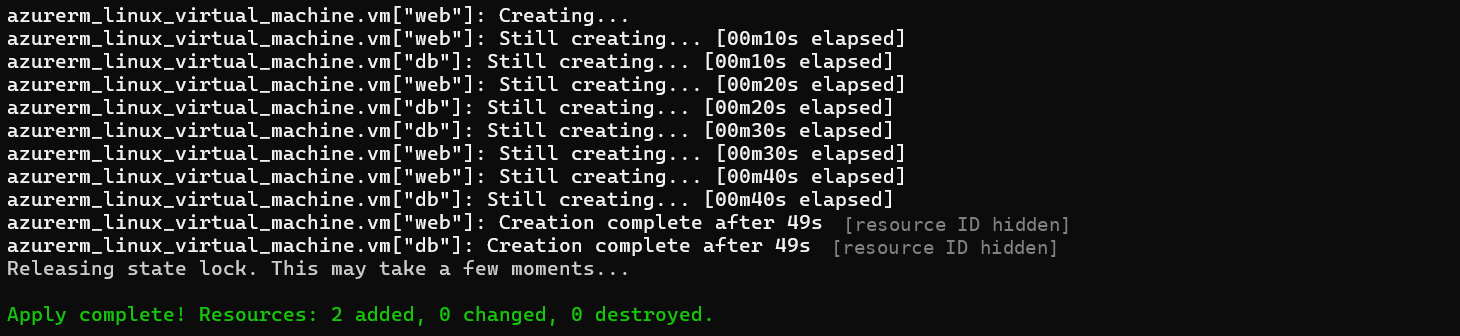
    Fix: I changed one variable to a different small size, Standard_B2ats_v2, and ran terraform plan again. It said “Plan: 2 to add.” Terraform’s state file remembered the 10 resources it had already built, so it only created the two missing VMs. They finished in 49 seconds.

    What I learned

    Every one of these error messages told me exactly what was wrong. The skill isn’t avoiding errors. It’s reading them carefully and fixing one thing at a time.

  • How I Built This Blog with Terraform and Ansible on Azure

    How I Built This Blog with Terraform and Ansible on Azure

    Welcome to Ingram Cloud Lab! I’m Marilyn, an MIS student at Georgia College, and this blog is where I document what I’m learning about cloud infrastructure, starting with the blog itself.

    Why I built it

    In one of my Linux courses, I set up a LAMP server on AWS by hand: installing Apache, MySQL, and PHP, then creating separate users and permissions for three client websites. It worked, but it was slow and easy to get wrong. I kept thinking: what if I needed fifty servers?

    That question led me to infrastructure as code, where servers, networks, and firewalls are described in files instead of set up by clicking. I’d taken courses on Terraform and Ansible, but I wanted to use them on something real. So I built the server this blog runs on.

    What’s running this site

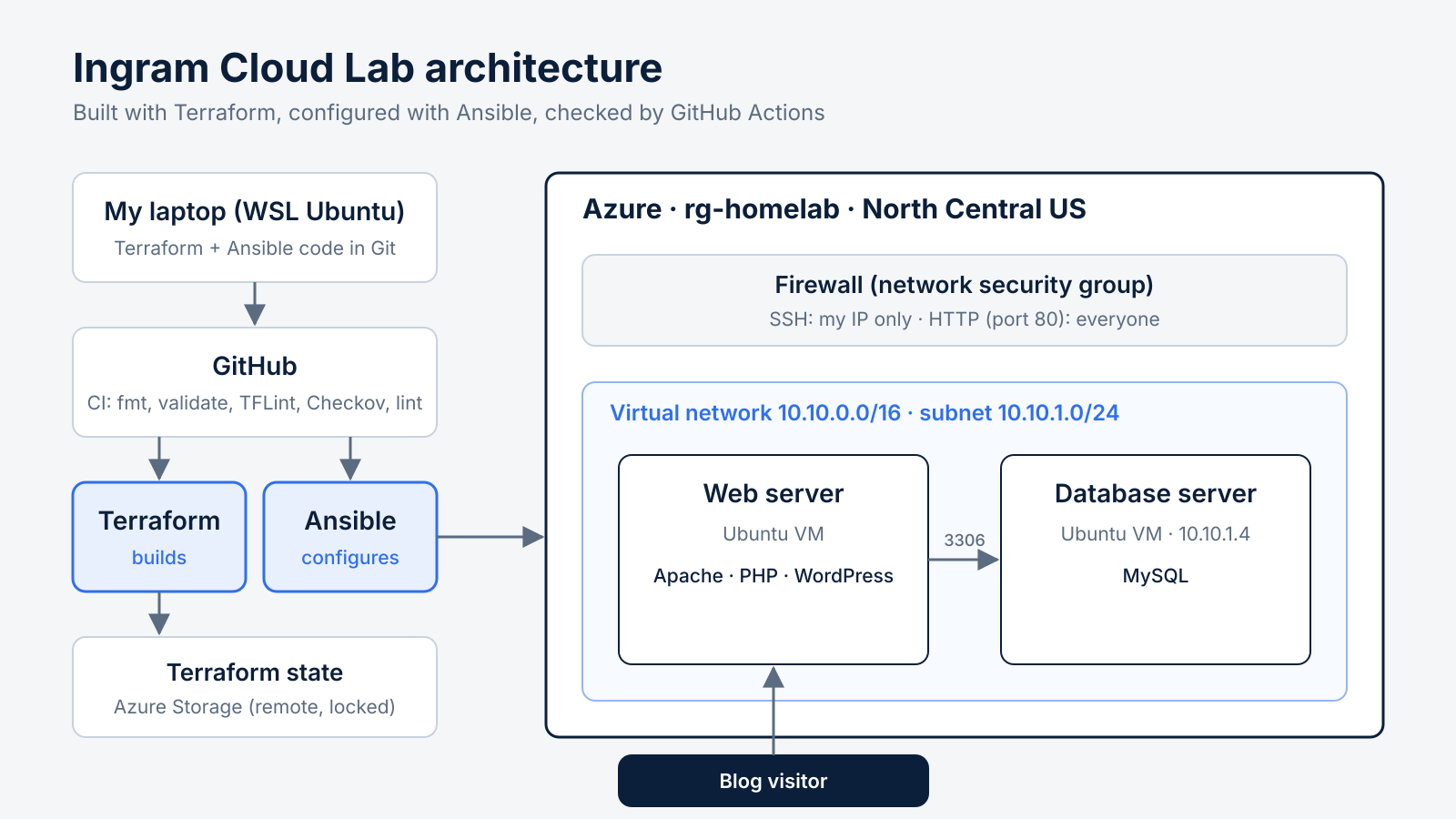
    • Terraform builds everything in Azure: a resource group, a virtual network and subnet, a firewall that only allows SSH from my IP, and two Ubuntu servers. Terraform’s state file is stored remotely in Azure Storage.
    • Ansible configures the servers. One runs MySQL. The other runs Apache, PHP, and WordPress, and connects to the database over the private network.
    • GitHub Actions checks every change I make, with format checks, a linter, and a security scan, before it’s merged.

    How a change gets from my laptop to Azure

    1. I change the code on a new Git branch.
    2. I open a pull request on GitHub, and the CI pipeline checks it automatically.
    3. Once the checks pass, I merge it.
    4. terraform apply builds or updates the infrastructure.
    5. ansible-playbook configures the servers.

    Right now I run the last two steps from my laptop. Connecting them to GitHub so they run automatically after I approve a change is my next project.

    A note on how I wrote the code

    I used AI to help generate the starting code, then I ran every piece myself and worked through every error. Honestly, that’s where most of the learning happened. I hit five different Azure errors on the first day, and I wrote about all of them in my next post.

    What I learned

    Terraform builds the house. Ansible furnishes it. Knowing which tool does which job made infrastructure as code finally make sense to me.

    The code for this whole site is public on GitHub: github.com/Marilyn-Ingram/homelab